If you want to make a slideshow on your Mac, your Mac has a built-in slideshow maker embedded in the Photos app, helping you to do so quickly.
Besides the built-in tool, there are many more online slideshow makers can help you easily make a professional slideshow for any occasions, from a birthday celebration to wedding ceremony, a work presentation to funereal tribute, you can create your own one on your Mac effortlessly following the methods we shared below.
Quick Navigation:
Free Templates for Your Slideshow Inspiration


Create Slideshow Video Faster with FlexClip’s Pre-Made Templates →
Start from Scratch Easily with FlexClip's Online Video Maker →
Can't Miss: How to Make a Slideshow on TikTok>
Part 1 How to Make a Slideshow with Music on Mac in Photos App
Tend to use a built-in slideshow maker they have pre-installed on their Macs to make a photo slideshow with music natively. The native macOS app, Photos, is one of such tools you can't miss.
In Photos, there are two ways to create slideshows on your Mac. You can quickly make and play an instant slideshow of the photos, or complete a slideshow project with advanced settings and playback options.
1.1 How to Make & Play Instant Slideshows in Photos on a Mac
To quickly make and play an instant slideshow on your Mac using the Photos app, you can follow the simple steps below:
1.2 How to Create a Slideshow Project with Music in Photos on a Mac
If you want more control over the options in your photo slideshow, you can create and save a slideshow project with music in Photos on your Mac. Moreover, unlike an instant slideshow, you can export your slideshow project as a video in M4V format to be played and shared with your friends.
Well, you've made your photo slideshow with music in Photos on Mac!
However, you should find that the slideshow you exported from the Photos is in M4V format, which means you may struggle to watch them on some devices or upload it to social media platforms unless you use another app to convert the M4V files to another format, like MP4.
To help you solve this problem, we'll show you another quick and easy way to create slideshows on your Mac. Keep reading.
Part 2 More Easy Ways to Make Photo Slideshow with Music on Mac
If you want to make a professional slideshow in a more compatible format on your Mac, then you can try FlexClip. It is a powerful online slideshow maker that offers different ways to help you make a stunning slideshow and save it as a video in MP4 or share it to social media directly.
FlexClip comes with powerful AI features and lots of pre-made slideshow templates for different occasions, offering smart and friendly ways for those who want to make a professional photo slideshow but lack of creative ideas or professional skills to create a slideshow in a few clicks on a Mac! What's more, you can customize any of these templates to your taste or even mix them to create something unique!
Just check the methods below and follow us to learn how you can easily make a slideshow in different ways using FlexClip on your Mac.
2.1 Auto Edit Your Photos into a Slidehsow on Mac
First, try FlexClip's Auto Edit feature to effortlessly turn your photos and video clips into a slideshow. With a single click, the AI organizes your media, applies stylish enhancements, and creates a polished, ready-to-share slideshow complete with music and stunning effects.

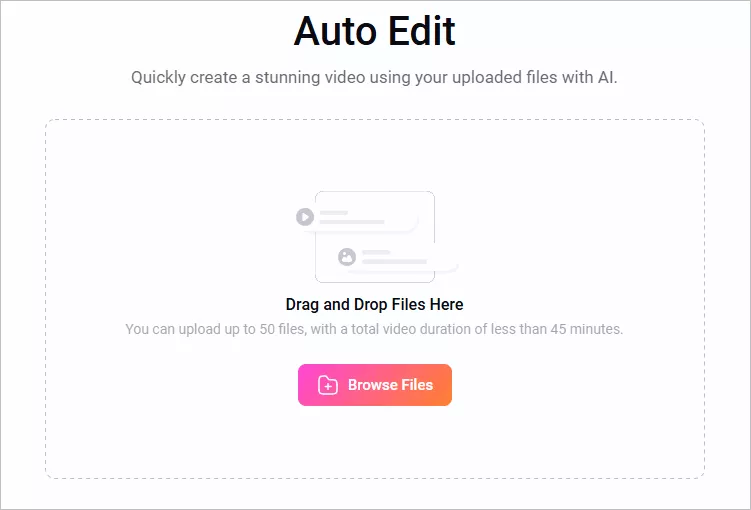
Auto Edit Your Photos to Make a Slideshow on Mac - Upload
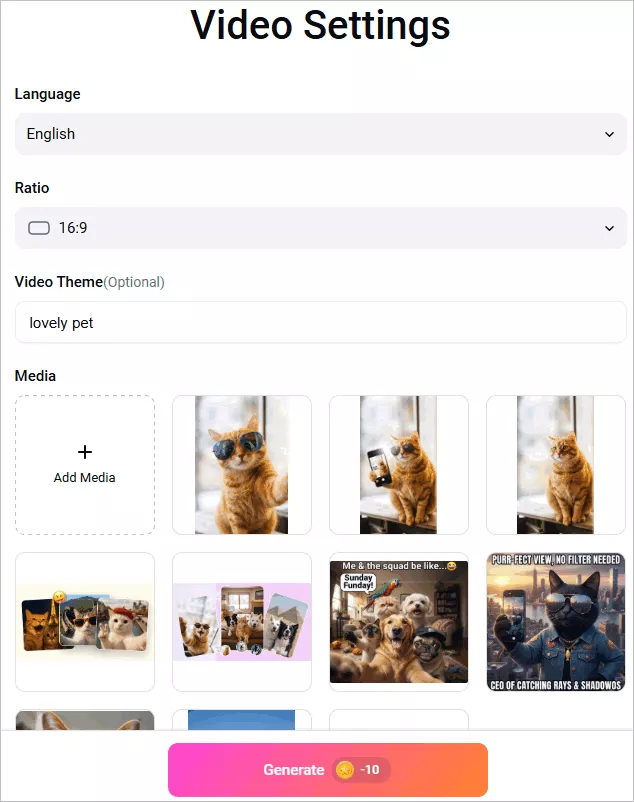
Auto Edit Your Photos to Make a Slideshow on Mac - Settings

Auto Edit Your Photos to Make a Slideshow on Mac - Generate
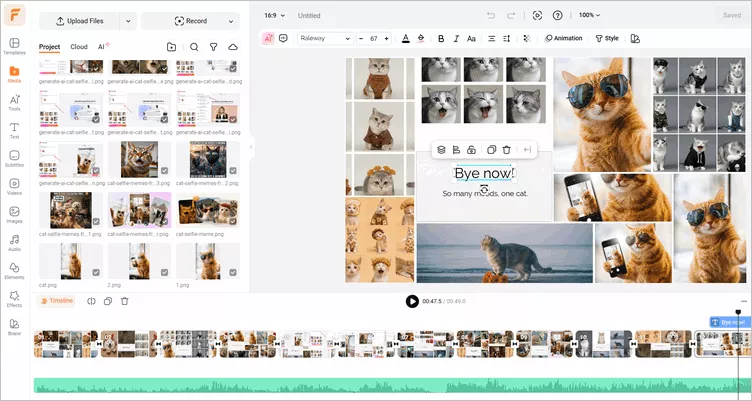
Auto Edit Your Photos to Make a Slideshow on Mac - Edit
2.2 AI Recreate Any Template to Make a Slidehsow on Mac
With FlexClip, you can also use its AI Recreate feature to instantly transform any preset slideshow template with your own footage and create a professional slideshow in just a few clicks. Simply pick a template, upload your media, and let the AI generate a stylish photo slideshow complete with matching text, music, and layouts.

Recreate Any Template for a Custom Slideshow on Mac - Select Template

Recreate Any Template for a Custom Slideshow on Mac - Upload & Setting
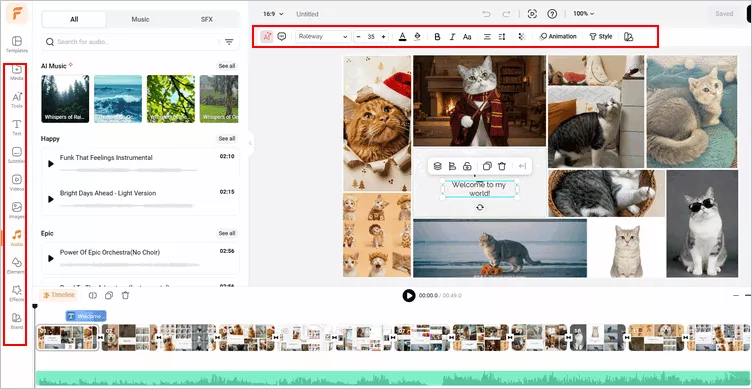
Recreate Any Template for a Custom Slideshow on Mac - Edit
2.3 Manually Make a Slidehsow for Maximum Creative Control
Want more flexibility and creative control? FlexClip offers powerful tools that let you customize timing, effects, text layers, music, sound effects, and video quality, helping you create a photo slideshow that looks more polished, professional, and engaging with personal touch.
Check the simple steps below to manually make a slidehsow for more flexibility using FlexClip on your Mac:
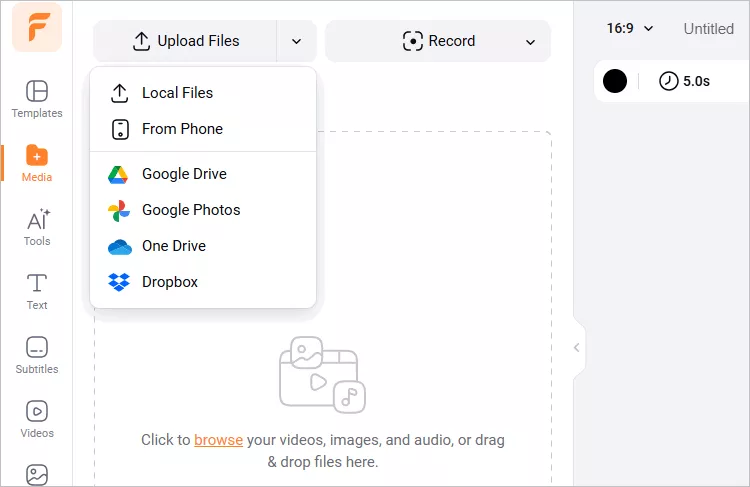
Manually Edit a Slidehsow on Mac - Upload
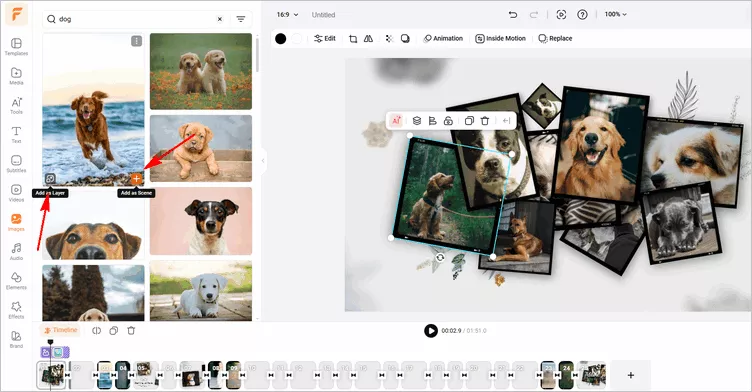
Manually Edit a Slidehsow on Mac - Add Footage
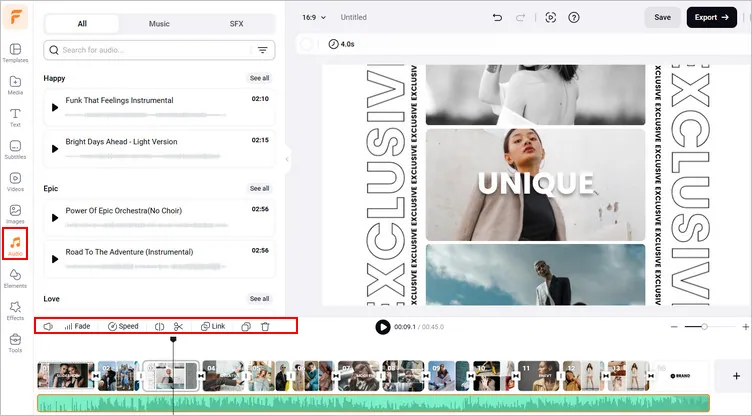
Manually Edit a Slidehsow on Mac - Add Music Tracks
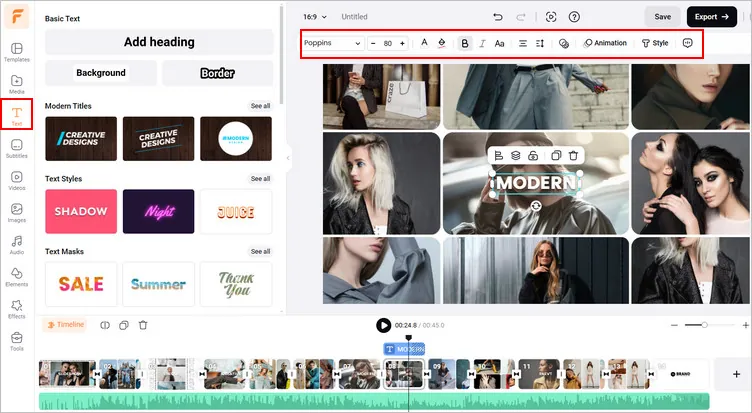
Manually Edit a Slidehsow on Mac - Put Your Words
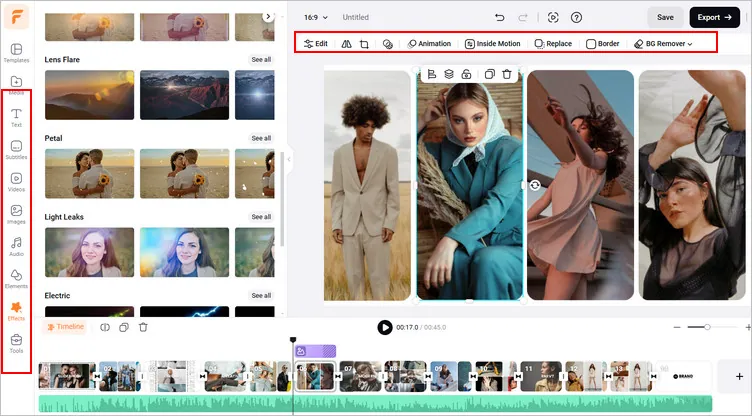
Manually Edit a Slidehsow on Mac - More Edits
And that's it! Creating a slideshow with music at FlexClip is a simple but satisfying process. Now, just click on the preview button check the final results - if you're satisfied with it, just export it now; if not, you can continue editing.
Final Words
With the ways on how to do a slideshow on Mac we discussed above, creating a photo slideshow with music on your Mac is a simple process, simply choose one that you prefer and start making your slideshow with great ease right now.




FlexClip AI Video Maker
Reach professional-quality videos faster with easy editing tools, templates, and smart AI.
Start Now for Free
Hot & Trending
-

Best Ways to Find Music in YouTube Videos
-

Instagram Story Video Quality Bad After Upload? Fix It!
-

How to Repost Video on TikTok & How to Remove TikTok Repost
-

Improve Video Quality Online: 3 AI Video Quality Enhancers You Can't Miss
-

4K Convert to HD 1080p without Watermark: Best 4k Video Converters
-

Top 13 Birthday Video Makers with Music and Effects Free
-

How to Search Filters on TikTok & Use a Filter You See - TikTok Filter Guide
-

Large Collection of Creative and Funny Birthday Video Ideas for Ones You Care